Your PDF becomes steps
Add the PDF. The app reads it and finds the sizes, yarn amounts, needles and the steps. Anything it is unsure about is marked yellow, and you decide what stays.
 Maskerade
Where every stitch counts.
Load your pattern as a PDF. The app reads it and splits it into steps you can knit from. Yarn, needles and counters are kept in one place.
The screens are drawn after the app's interface, with sample data. The app is in Norwegian today.
What each feature does for you, in short.
Add the PDF. The app reads it and finds the sizes, yarn amounts, needles and the steps. Anything it is unsure about is marked yellow, and you decide what stays.
Did the designer correct the pattern? Load the new PDF into the same project. You see what has changed, and nothing is replaced until you approve it.
Open a PDF in Mail, Files or your browser, tap Share and choose Maskerade. The pattern lands in your library. If you have it on paper, take a photo of it.
One step at a time. A counter for repeats, your own counters for decreases and pattern repeats, and a timer for knitting time. The app remembers where you were.
Put a reminder on a step or at a counter value, for example “change to 3.5 mm needles”. It stays at the top until you tap Done.
Record your yarn with colour, lot and number of skeins, and the needles you own. When you pick yarn for a project, you see what is free and what is reserved.
Take a photo of the label. The app reads brand, name, colour, lot, weight and length and fills in the fields. The label wraps around the skein, so you can add the back: up to two photos.
See the pattern as it was published. Highlight, write and draw right on the page, and lay the ruler over it to measure against your gauge.
Knit together with friends. You see what each other are knitting and send hearts. You share patterns when you choose to.
Projects, counters, yarn and needles follow you between iPhone and iPad when you are signed in.
See your project and where you are in the pattern from the Home Screen and the Lock Screen, without opening the app.
The app adapts to the larger screen. On iPad the steps sit next to the PDF page, so you see both at once.
After import you see the pattern split into sections and steps, with size, yarn and needles. If a step is unclear, a yellow warning shows the pattern's own words right below it. Then you can check against the source.
You see one step at a time, with a counter for the repeats. Put your work down, and the app opens at the same step next time. Further down the session you find progress per section, your own counters, a timer and the yarn you are using.
Live Activity and widget are simplified.
Yarn is grouped by brand and name, with a colour swatch for each colour. You see the lot, how many skeins and how many metres are left. If you have reserved yarn for a project, it shows there.
Tap Scan label and take a photo. The app reads brand, name, colour, lot, weight and length, and fills in the fields. It never overwrites what you have already typed, and uncertain fields are left empty.
The label wraps around the skein, so the lot and colour numbers are often on the back. Add a second photo and both are read together. If you add the same yarn twice, the app asks whether the skeins should go on the row you already have.
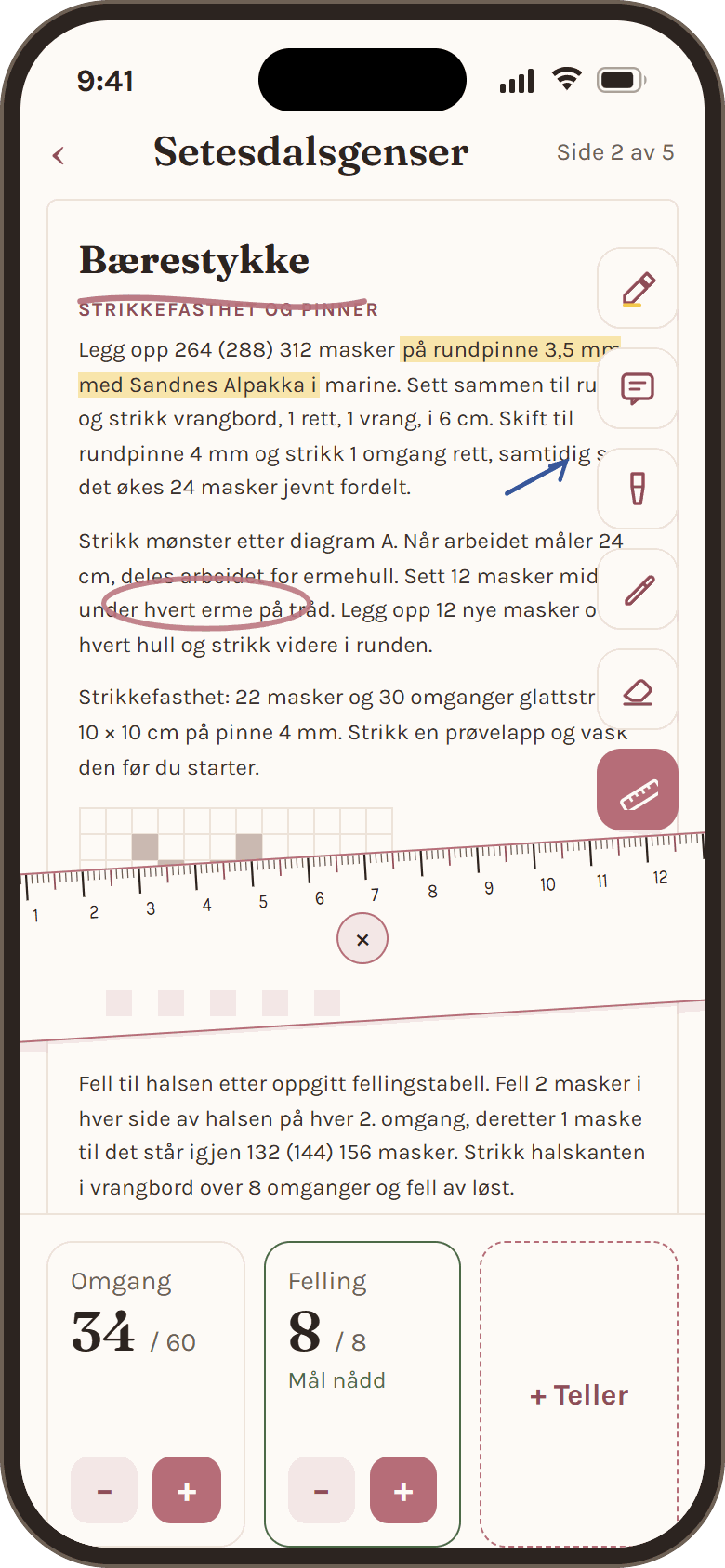
Open the PDF and mark what you need to remember. With the pen, the highlighter and the eraser you write directly on the page, and you lay the ruler over it to measure against your gauge swatch.
Create a knit crew and share the code with the people you want to knit with. On the Home screen you see each other's projects, both what is on the needles now and what was just finished, and you send each other hearts.
You share your patterns with the crew when you choose to. The others can open them and start their own project with their own copy. If you are knitting a Christmas present for someone in the crew, you hide the project with one tap.
On iPad the screen is split. The steps sit on the left, and the PDF page stays open on the right and follows the step you are on. You do not have to flip between two views.
Everything else works as on iPhone, and your projects follow you between devices when you are signed in.
A PDF, the share sheet or a photo of the paper.
Correct what is marked uncertain, and choose your size.
Follow the steps, tap the counter, put it down whenever you like.
Maskerade is heading to TestFlight. You need an iPhone or iPad with iOS 17 or later, and the TestFlight app from the App Store.
 Open in TestFlight
The link arrives when the test round opens. A subscription is coming later.